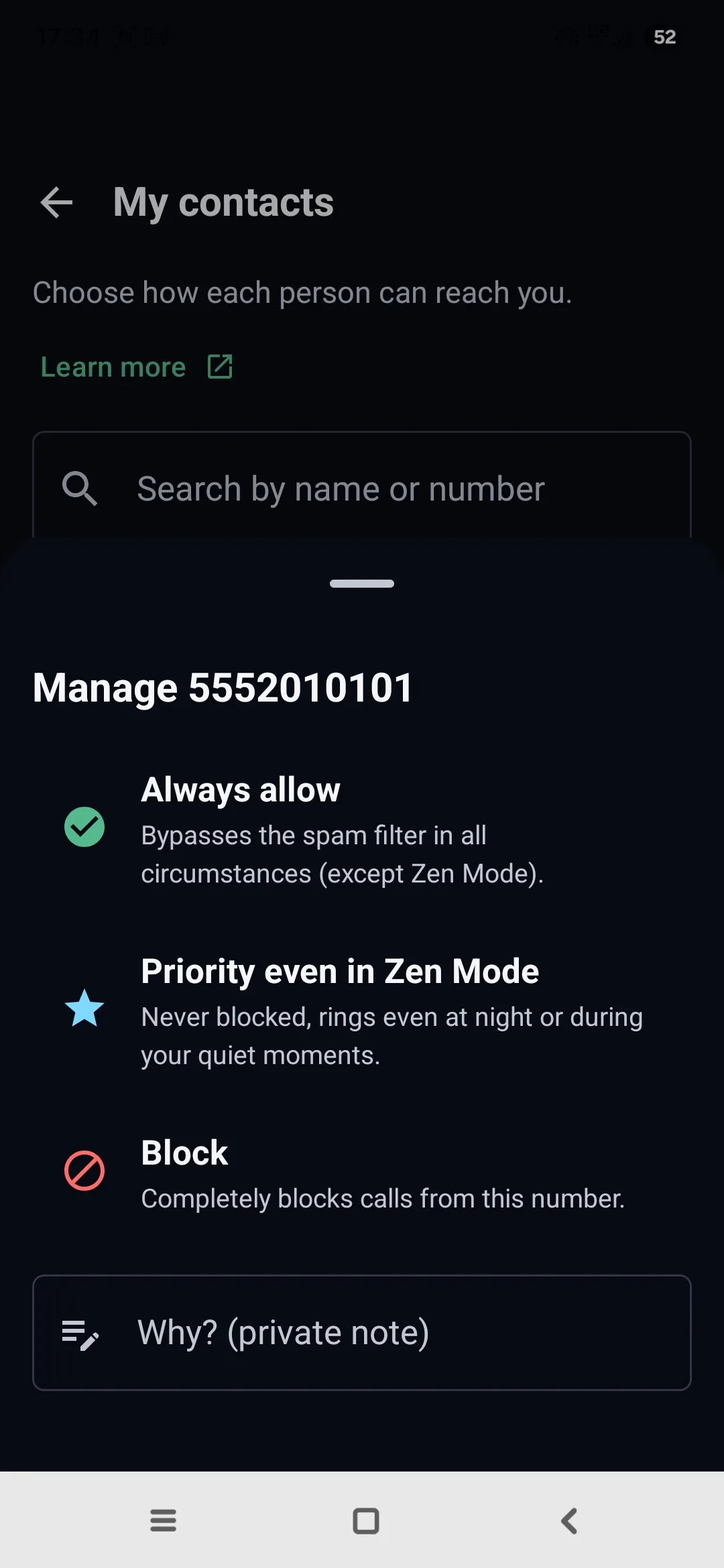
Real screenshot · Samsung Galaxy S24 · unedited
The 3 settings, explained
Always allow
Bypasses the spam filter in all circumstances (except Zen Mode).
Priority even in Zen Mode
Never blocked: rings even at night or during your quiet moments, when everything else is silenced.
Block
Completely blocks calls from this number.
Setting a contact
Open the Protection tab, then My contacts.
Search for the number by name or directly by number, then tap it.
Choose its setting — Priority even in Zen Mode for example — and, if you like, add a private note to remind yourself why.
Frequently asked questions
Does a priority contact ring even in Zen Mode?
Yes. A contact marked "Priority even in Zen Mode" is never blocked and rings even at night or during your quiet moments, when everything else is silenced. How does Zen Mode work →
Is the "Why?" note private?
Yes. It's a personal note, stored only on your phone, never sent anywhere.
How do I access a contact's setting?
From the Protection tab, open My contacts, search for the number by name or by number, and tap it to choose its setting.